
Contents
Ultimate IBO Player Setup Guide 2025 – Unlock Live TV & Movies
Complete IBO Player setup tutorial for Smart TV, Samsung TV, Firestick, and Android devices. Add M3U or Xtream Code playlists quickly, enjoy Live TV, Movies, Series, VOD, and enhance your IPTV experience like a pro!
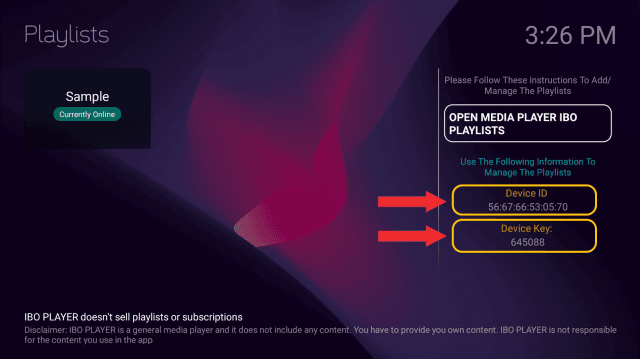
Step 1: Find Your MAC Address & Device Key
Open IBO Player on your device. On the home screen or via Settings > Account Info, note your MAC Address and Device Key. These are essential for your playlist activation.
Step 2: Add Your Playlist Online
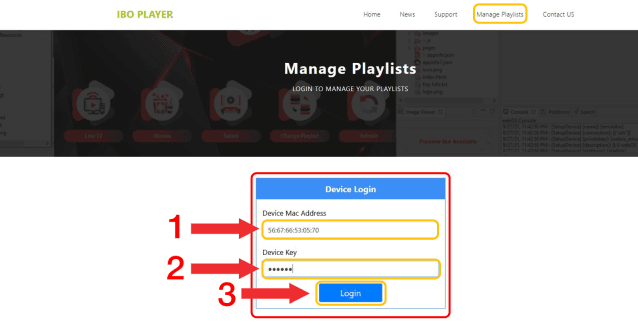
Go to IBO Player Manage Playlists and enter your MAC Address and Device Key, then click Login.
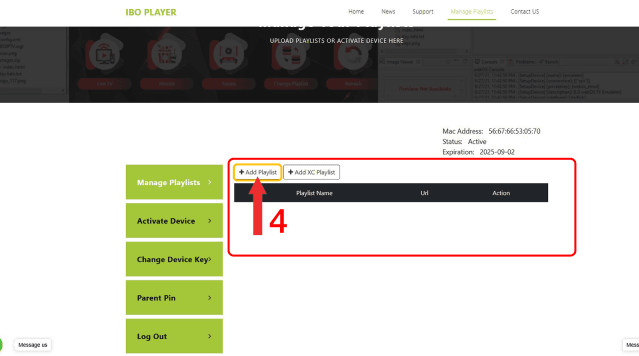
- Click Add Playlist (or Add XC Playlist for Xtream Codes)
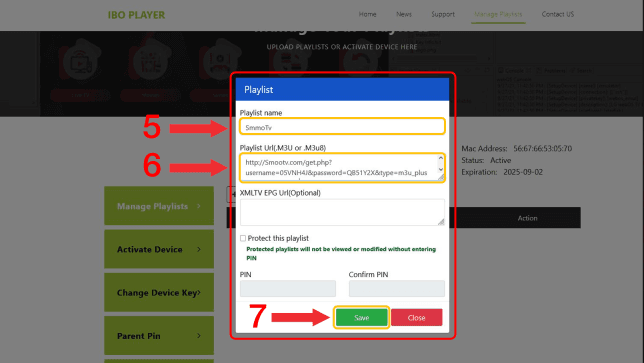
- Enter a Playlist Name of your choice
- Paste your M3U Playlist URL
- Click Save
For internal guidance, check our IPTV Setup Guides page for more tutorials.
Step 3: Refresh or Restart the App
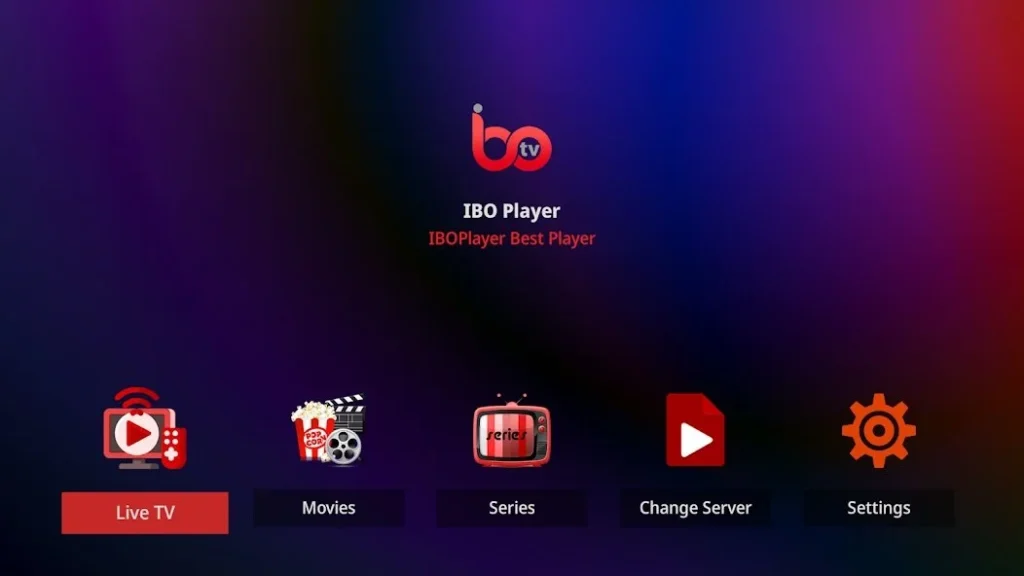
After saving, refresh or restart IBO Player on your device. Wait a few seconds for your playlist to load. Categories like Live TV, Movies, Series, and VOD will appear.
Step 4: Troubleshooting Common Issues
- Playlist Not Loading: Restart app 2-3 times or re-add playlist.
- Freezing Channels: Check your internet, server stability, or close background apps.
- Switch MAC ID: Login to Switch MAC ID page, add new MAC, and confirm.
Step 5: Manual Installation (Android Devices)
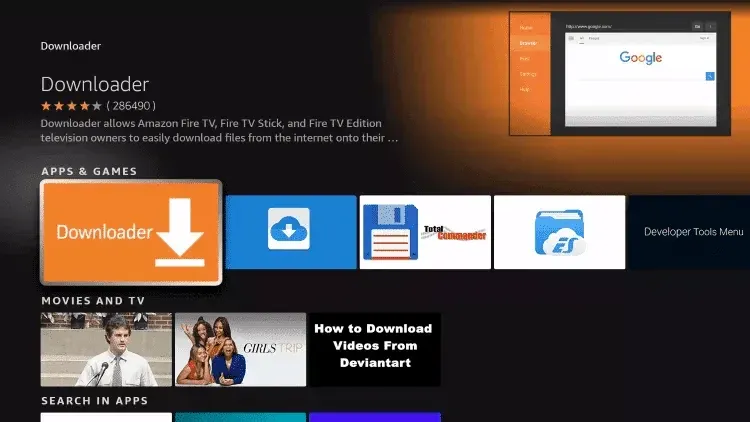
If IBO Player is not in Google Play, install via Downloader:
- Install Downloader from Play Store
- Enter URL: ibodesk.com/iboupdate.apk
- Enable Unknown Sources if prompted
- Downloader Code: 1171959
Step 6: Enjoy Your IBO Player Streaming
Once setup is complete, enjoy premium Live TV, Movies, Series, and VOD. IBO Player offers a 7-day free trial and affordable license for continuous use.
Why Choose IBO Player?
- Supports M3U & Xtream Code playlists
- Works on Smart TVs, Samsung, Firestick, Android
- 7-day free trial & lifetime license available
- Customizable interface for all users
- High-quality video: HD, Full HD, 4K